
How to Generate Audio Descriptions
With your ViddyScribe Enterprise workspace set up, it's time to create your first audio-described video. ViddyScribe's AI engine does the heavy lifting, analyzing your video and generating natural-sounding descriptions.
Step 1: Upload Your Video
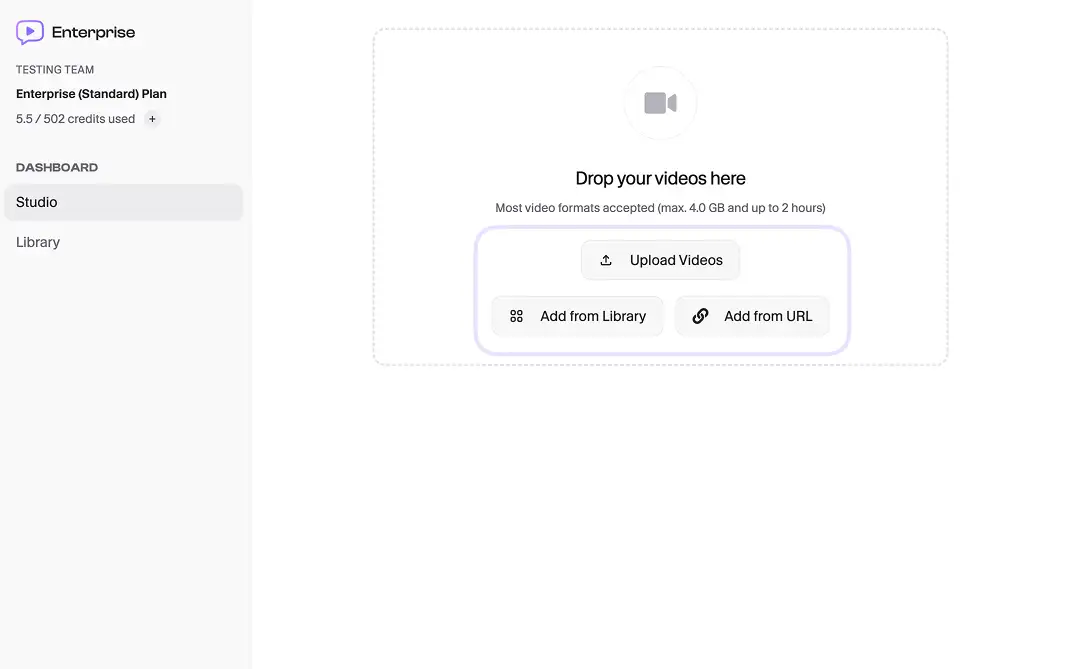
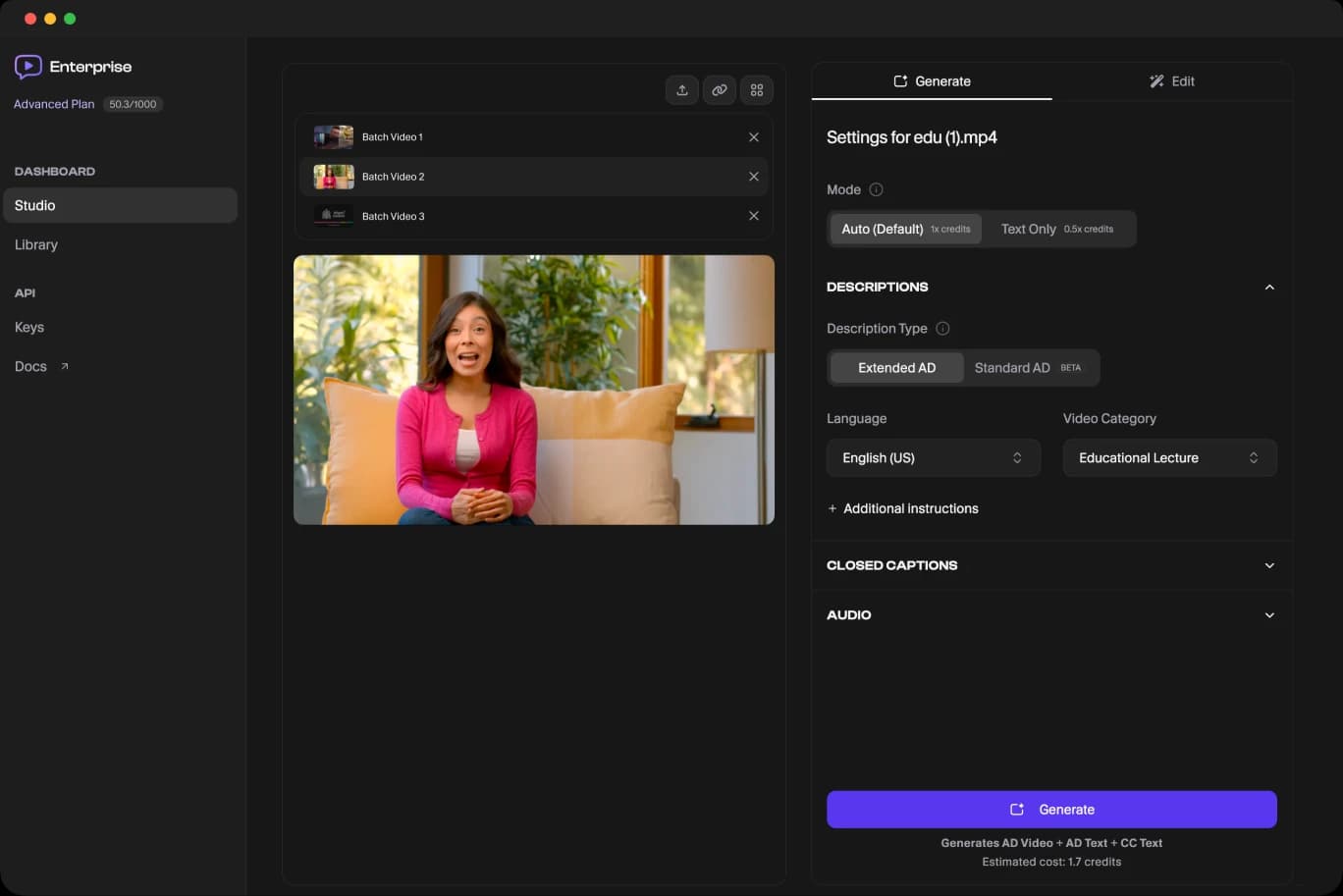
Start by navigating to the Studio tab in your dashboard and clicking the Upload Videos button.
You can upload a video file directly from your computer. Alternatively, you can add videos that have already been uploaded with the Add from Library button, or add a link to a supported external video source with the Add from URL button.
Note that in order to use the Add from URLfunction, external links must be publicly accessible, and point directly to the video itself, e.g. "/filename.mp4". Pasting a link to a page where the video is hosted, such as a YouTube link, will not load videos into ViddyScribe.
Step 2: Choose Your Audio Description Type
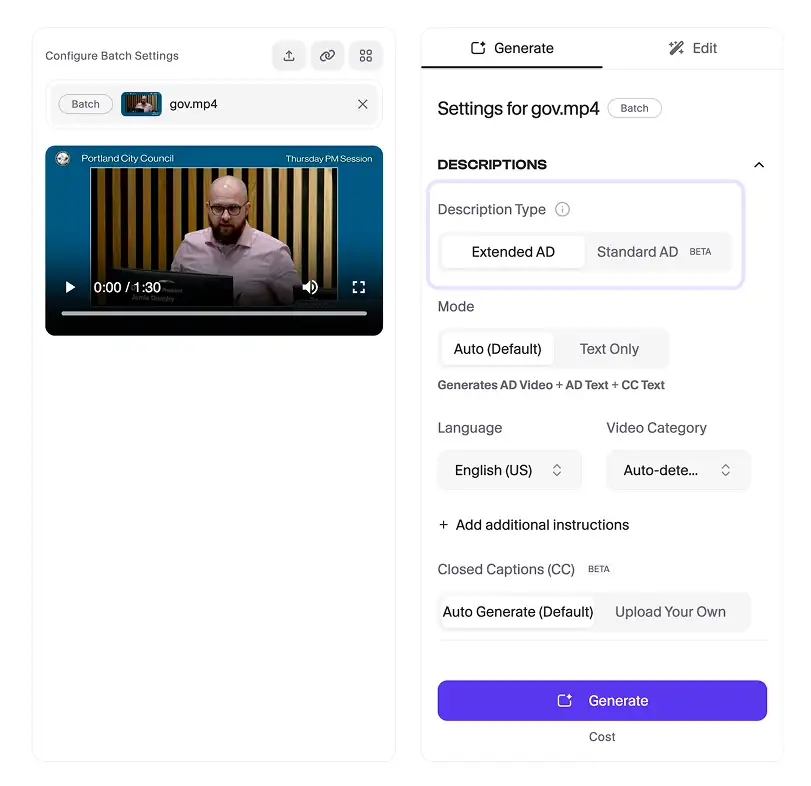
ViddyScribe Enterprise offers two types of audio description to ensure compliance with WCAG and ADA standards. It's crucial to select the right one for your content:
- Standard AD: This type inserts descriptions onlyinto the natural pauses in the video's original audio track. It does not alter the length of the video. This is ideal when your video already has sufficient quiet moments to fit the descriptions.
- Extended AD: If your video has continuous dialogue or fast-paced action with very few pauses, Extended AD is the solution. ViddyScribe will temporarily pause the video visually while the description plays, ensuring no critical visual information is missed by the visually impaired viewer.
Step 3: Select Your Workflow Mode
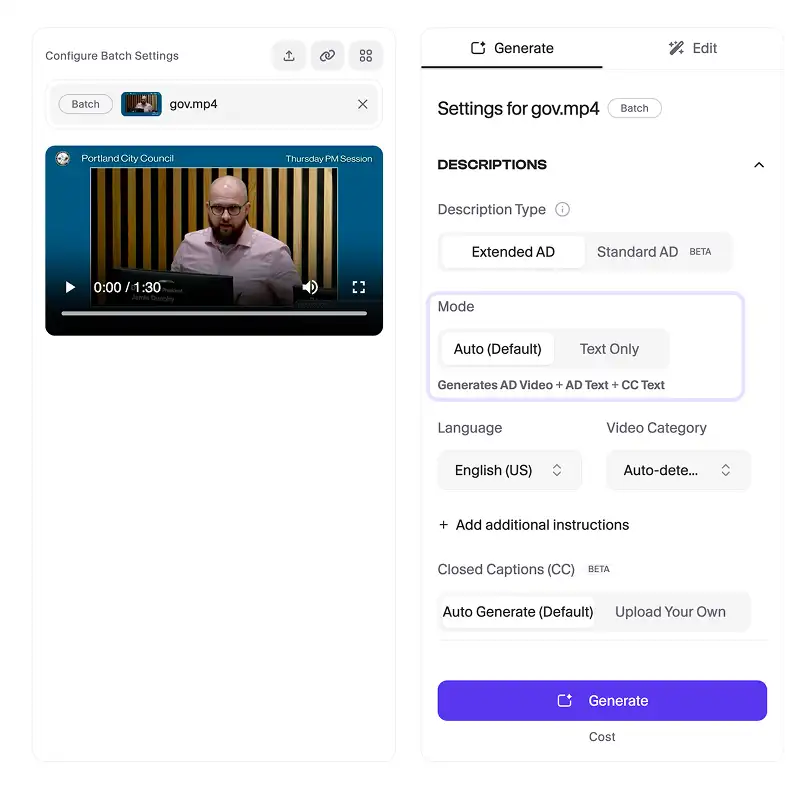
Choose whether you want ViddyScribe to automatically generate your AD script, convert it to speech, and encode it into your video (Auto) or if you want it to only generate the AD script, so that you can make edits to it before converting the script to speech and encoding it into your video (Text Only).
Step 4: Select Language and Video Category
ViddyScribe supports multiple languages and dialects. If the language or dialect you need is not available, email support@viddyscribe.com to make a request. Note that not all languages or dialects can be accommodated.
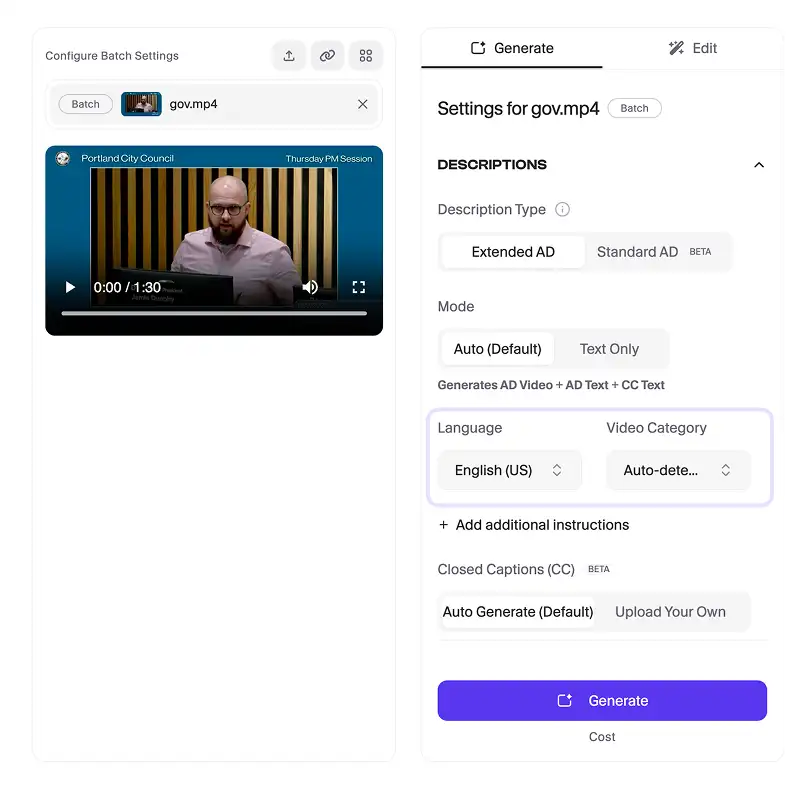
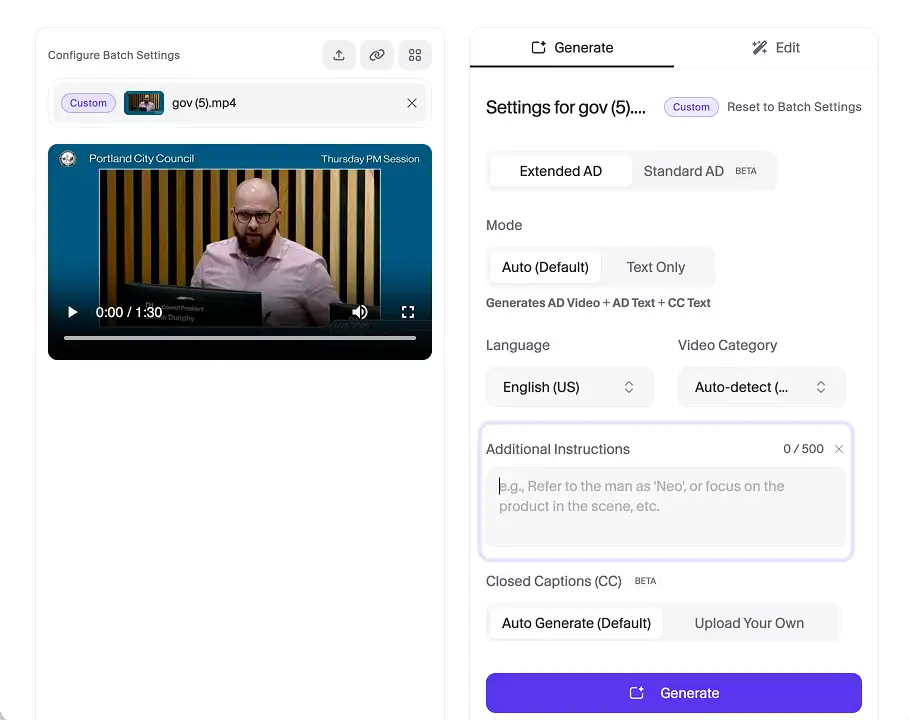
Step 5: Give ViddyScribe Additional Instructions (Optional)
These settings fine tune ViddyScribe's initial output and tailor them with proper context for your viewers.
- In the Additional Instructions field, add up to 2000 characters to tell ViddyScribe how to describe your video. This can be useful for subject/character names, description tone, or a custom glossary of terms.
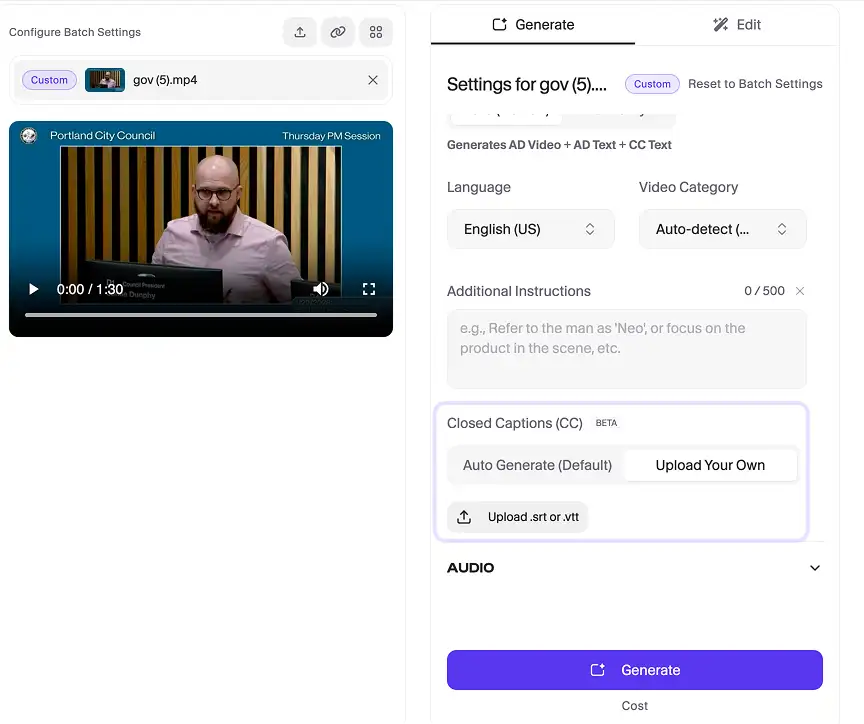
Step 6: Closed Captions
If you have your own closed captions file, you can upload them to ViddyScribe so that it will incorporate it with your generated outputs. If you don't have your own closed captions file, leave Auto-generate Captions checked.
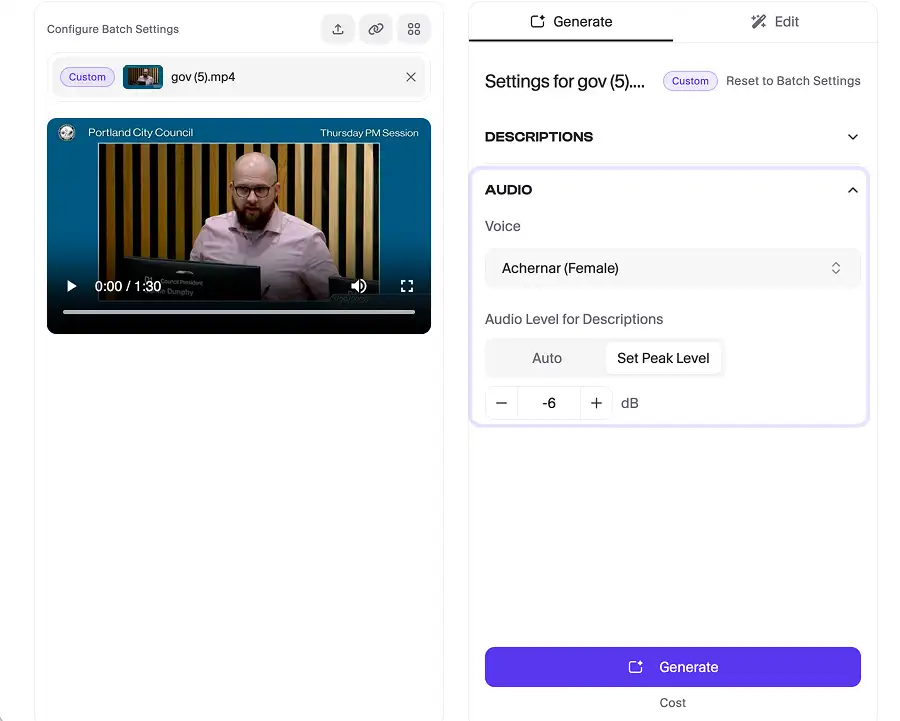
Step 7: Select Voice and Peaking Level
These options are available if you have selected the Full workflow mode.
- Listen to the voice previews and select the one that best fits the tone and style of your content.
- Manually choose your desired peaking level for generated speech, or
- If you have selected Text Only, you will select your voice and peaking level in the Edit tab instead of the Generate tab. We will go into more detail on this in our next tutorial, Perfecting Your AD with the Timeline Editor and Smart Edit.
Step 8: Generate
Once you've configured your settings, click Generate. ViddyScribe will now process your video.
The processing time depends on the length of your video, but you can navigate away from the page while it works. Your output will appear at the top of your Library when it is complete.
Step 9: Download Your Accessible Video Outputs
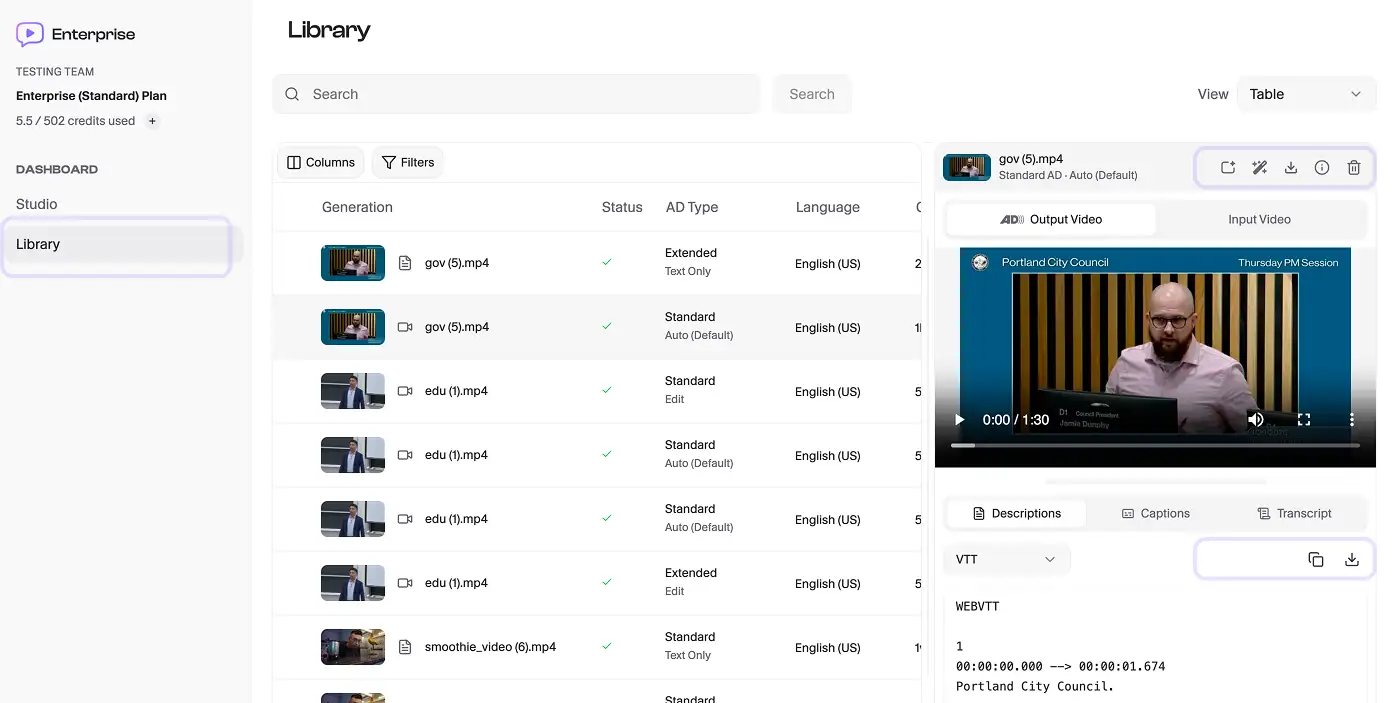
Unlike Individual plans where users can only share links, ViddyScribe Enterprise gives you full control over your assets. Once processing is complete, head over to Library to download your files in several formats:
- Burned-in Video (MP4): A new video file with the audio description track permanently mixed in.
- Audio Track Only (WAV): Standard AD outputs will optionally provide the isolated audio description track, which is useful if you are mixing it yourself in an external video editor or sideloading it into an existing video on a platform like YouTube.
- Description, Caption, and Transcript (VTT, TXT, JSON, and more): A text transcript of the descriptions with timestamps.
Need to make a few tweaks before exporting? No problem. Our next tutorial will cover how to use the Edit tab to perfect your descriptions.
Next Tutorial: Perfecting Your AD with the Timeline Editor and Smart Edit.
Make Your Videos Accessible in Minutes
ViddyScribe helps teams, agencies, and creators generate audio descriptions quickly and affordably.
Get access to the platform and start audio describing your videos today.